Password Manager vs Browser Save: Which Security Model Fits You
Browser password managers store credentials in the same process as web content, creating a broader attack surface than standalone applications with isolated storage.

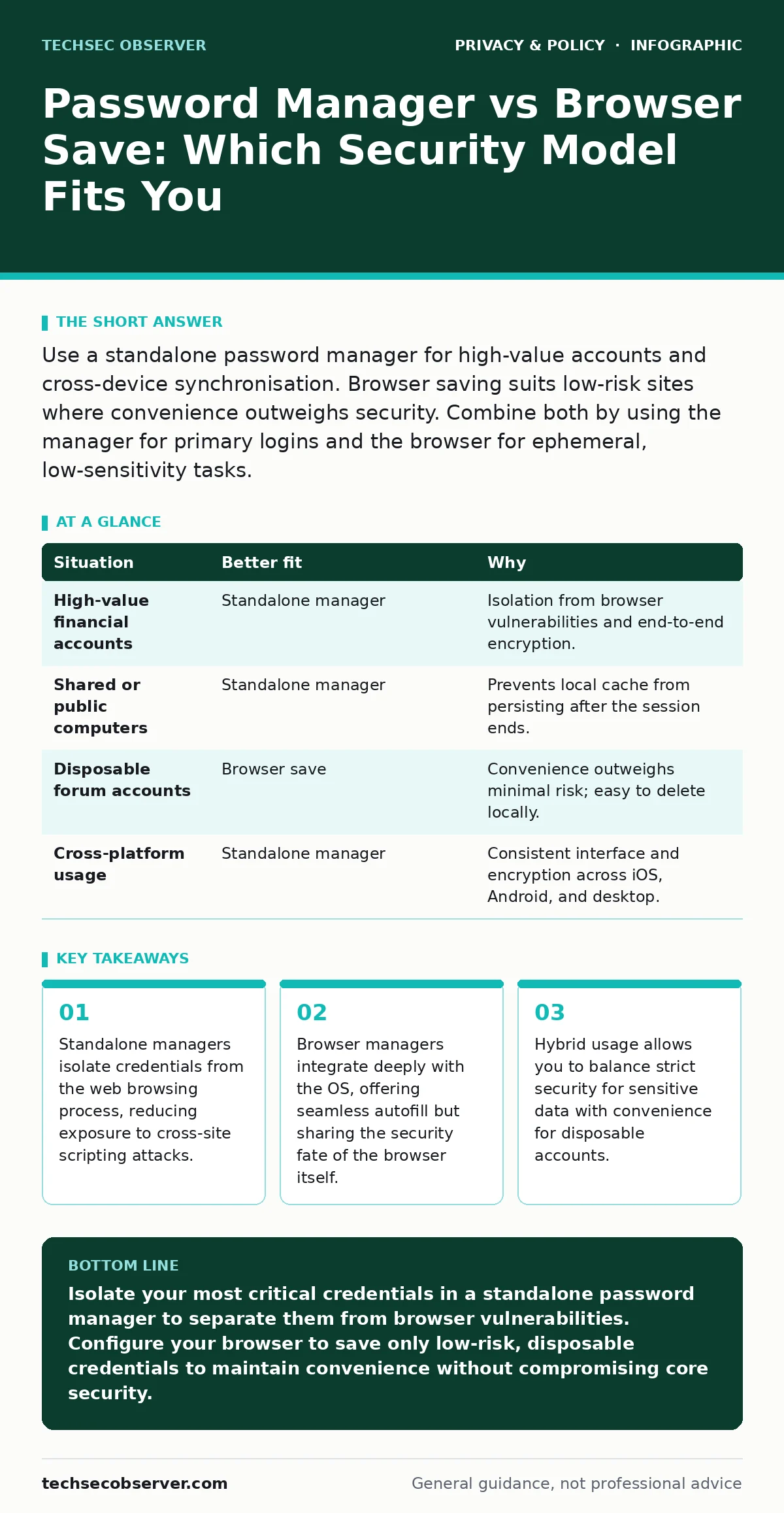
Use a standalone password manager for high-value accounts and cross-device synchronisation. Browser saving suits low-risk sites where convenience outweighs security. Combine both by using the manager for primary logins and the browser for ephemeral, low-sensitivity tasks.
The Isolation Principle
The primary technical difference lies in process isolation. A standalone password manager runs as a separate application or a background service that communicates with the browser via a signed extension. This creates a boundary between the code that renders web pages and the code that stores your secrets. If a malicious website executes a script, it interacts with the browser process, not directly with the password vault.
Browser-saved passwords reside within the browser’s own profile directory. The browser renders the page and retrieves the password from the same local storage. If the browser is compromised by a vulnerability, the attacker already has access to the credential store. There is no additional layer of defence between the exploit and the data.
Imagine a scenario where a website contains a flaw that allows an attacker to read local files. With a browser manager, the credentials are often stored in a file accessible to the browser process. With a standalone manager, the vault remains encrypted in a separate location, requiring the master password to decrypt it, even if the attacker controls the browser.
Synchronisation and Device Trust
Consider how your credentials move between devices. Browser managers typically sync via the cloud account associated with the browser profile. This means the vendor hosting the browser services has access to your encrypted password data, or at least the keys to decrypt it, depending on their implementation. You must trust the browser vendor’s security practices and their response to legal requests for data.
Standalone managers often offer end-to-end encryption where the vendor cannot read your data. The encryption keys are derived from your master password on your device. This shifts the trust model from the vendor’s infrastructure to your own device security. If your device is lost, the vendor cannot reset your access; only you can, via your password or recovery file.
This trade-off affects recovery. If you forget your master password for a standalone manager, recovery depends on a backup file you created. Browser managers allow password resets via the associated email account, which is convenient but introduces a single point of failure: the email account itself. See our guide on reducing your digital footprint to understand how linked accounts increase risk.
Autocomplete and Data Leakage
Browser managers are aggressive with autocomplete. They fill forms not just for login fields, but for any input that resembles a password or personal data. This convenience can lead to accidental data exposure if you are on a public computer or a shared device. The browser may remember more than you intend, including credit card details or home addresses.
Standalone managers are more conservative. They typically only fill fields when explicitly triggered by the user or when the domain matches a stored entry exactly. This reduces the risk of spraying credentials across different sites that share similar URL structures. It also prevents the browser from storing partial information that could be harvested by malware.
However, browser integration is smoother. The browser knows when you are on a trusted site and can pre-fill forms instantly. Standalone managers require the user to activate the extension or use a keyboard shortcut. This extra step can be a friction point that leads users to abandon security best practices.
| Situation | Better fit | Why |
|---|---|---|
| High-value financial accounts | Standalone manager | Isolation from browser vulnerabilities and end-to-end encryption. |
| Shared or public computers | Standalone manager | Prevents local cache from persisting after the session ends. |
| Disposable forum accounts | Browser save | Convenience outweighs minimal risk; easy to delete locally. |
| Cross-platform usage | Standalone manager | Consistent interface and encryption across iOS, Android, and desktop. |
When to Use Both Together
You do not need to choose one exclusively. A hybrid approach leverages the strengths of both systems. Use the standalone manager for your primary identities: email, banking, and social media. These accounts are the keys to your digital life. Compromising them allows an attacker to reset passwords for other services.
Use the browser’s built-in manager for low-stakes interactions. News sites, one-time downloads, or public forums where you use a secondary email address are suitable for browser saving. If the browser profile is compromised, the damage is contained to those low-value accounts.
This strategy requires discipline. You must ensure the browser does not save passwords for your primary accounts. Configure the browser to ignore specific domains. This prevents accidental duplication, which leads to confusion and outdated credentials. See our guide on privacy by design for principles on structuring your digital habits.
The Master Password Constraint
Both systems rely on a single master password or passphrase. If this password is weak, the encryption is irrelevant. The difference is that browser managers may offer to save this master password in the OS keychain, which can be accessed by any application with your user privileges. Standalone managers rarely offer this option, enforcing the use of a unique, strong passphrase.
Do not use the same password for your password manager as you do for your email. If an attacker gains access to your email, they can attempt to reset the password manager’s access if it is tied to that email. Keep these credentials distinct.
See also: Private file sharing services: secure transfer workflows · Block Wi-Fi Finder Apps From Mapping Your Network
Handling Password Reuse
Browser managers often prompt you to save new passwords but do not always detect reuse as effectively as standalone tools. Standalone managers scan your vault for duplicate passwords across different sites. This visibility helps you identify where you have weakened your security by using the same credential in multiple places.
If you find reused passwords, change them immediately. Use the password generator in your standalone manager to create unique, complex strings for each site. This ensures that a breach on one platform does not compromise your other accounts. See our guide on metadata exposure to understand how unique identifiers can link your activities.
Key takeaways
- Standalone managers isolate credentials from the web browsing process, reducing exposure to cross-site scripting attacks.
- Browser managers integrate deeply with the OS, offering seamless autofill but sharing the security fate of the browser itself.
- Hybrid usage allows you to balance strict security for sensitive data with convenience for disposable accounts.
Isolate your most critical credentials in a standalone password manager to separate them from browser vulnerabilities. Configure your browser to save only low-risk, disposable credentials to maintain convenience without compromising core security.
Frequently asked questions
Is it safe to use my browser’s password manager?
It is safe for low-risk accounts, but it offers less protection than a standalone manager because the credentials share the same process as the web content.
Can I sync passwords between a standalone manager and my browser?
Most standalone managers offer a browser extension that integrates with your browser, providing the best of both isolation and convenience.
What happens if I lose my master password?
If you use a standalone manager with end-to-end encryption, you may lose access to your vault if you do not have a recovery file. Browser managers usually allow recovery via your email account.
Do password managers protect against phishing?
They help by only filling passwords on the exact domain stored in the vault, but they do not prevent you from visiting a malicious site that looks identical to a legitimate one.
How this guide was produced: written by the TechSec Observer editorial team with AI assistance, checked against the public references listed below, and reviewed when the facts change. See our editorial policy or report an error.