Privacy-Focused Browsers: How They Block Trackers and Protect Data
See how privacy browsers isolate sessions, block scripts, and manage cookies to stop behavioural profiling without breaking the web.

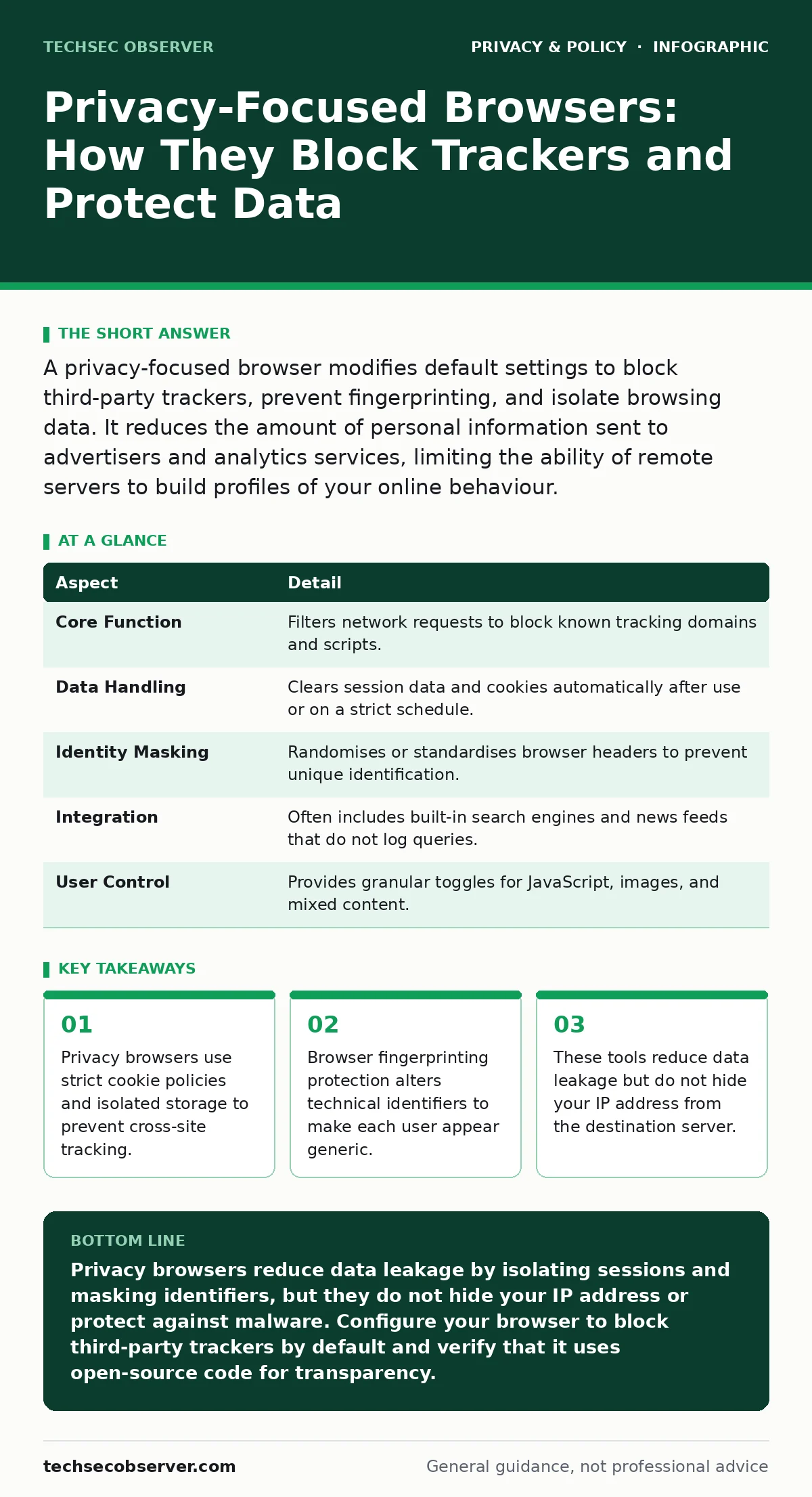
A privacy-focused browser modifies default settings to block third-party trackers, prevent fingerprinting, and isolate browsing data. It reduces the amount of personal information sent to advertisers and analytics services, limiting the ability of remote servers to build profiles of your online behaviour.
The Digital Footprint Analogy
Imagine walking through a shopping centre where every shopkeeper notes your height, shoe size, and the time you entered. They do not need your name to know when you return or what you bought. Standard browsers allow this passive observation by default. Privacy-focused browsers act as a disguise, ensuring every shopkeeper sees a generic figure with no distinguishing features. This prevents the accumulation of a detailed profile based on your browsing habits.
The primary goal is not anonymity, but data minimisation. By reducing the volume of signals you emit, you make it difficult for remote servers to link different activities to a single individual. This approach addresses the economic model of online advertising, which relies on granular user data to target content.
What Privacy Browsers Actually Do
A privacy-focused browser is a web client configured to reject non-essential data collection. It differs from standard browsers by altering default behaviours regarding cookies, scripts, and hardware identifiers. These changes are often enabled by default, removing the burden from the user to configure complex settings.
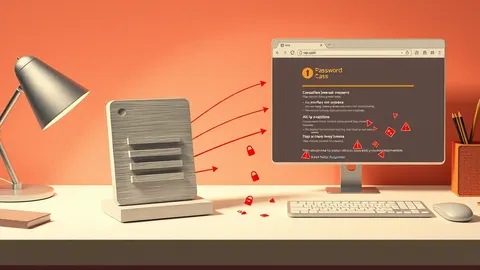
The browser acts as a gatekeeper between your device and the web server. It inspects incoming requests and outgoing responses, filtering out elements that serve tracking purposes rather than functional ones. This includes blocking third-party cookies, which are small data files used to follow users across different websites.
| Aspect | Detail |
|---|---|
| Core Function | Filters network requests to block known tracking domains and scripts. |
| Data Handling | Clears session data and cookies automatically after use or on a strict schedule. |
| Identity Masking | Randomises or standardises browser headers to prevent unique identification. |
| Integration | Often includes built-in search engines and news feeds that do not log queries. |
| User Control | Provides granular toggles for JavaScript, images, and mixed content. |
The Mechanism of Isolation
The most effective privacy feature is site isolation. This technique ensures that data from one website cannot be accessed by another. In a standard browser, a tracking pixel on Site A can read cookies set by Site B if they share a common domain. Isolation breaks this link by creating separate storage containers for each origin.
Each container operates in its own memory space. If a malicious script runs in one container, it cannot easily access data in another. This limits the damage of cross-site scripting attacks and prevents advertisers from correlating your activity across the web. You visit a news site, then a shop, then a forum. To the trackers, these are three unrelated, generic users.
Fighting Browser Fingerprinting
Fingerprinting is a technique that identifies you by combining technical details of your device. It looks at your screen resolution, installed fonts, battery level, and hardware concurrency. Unlike cookies, which you can delete, these attributes are hard to change and unique to your setup.
Privacy browsers combat this by homogenising these signals. They report standardised values for screen size and font lists, making thousands of users appear identical. This is known as canvas fingerprinting resistance, where the browser alters the output of graphics rendering to prevent unique identification. The trade-off is that some web applications may fail if they rely on specific hardware features for functionality.
The Limits of Privacy Browsing
A privacy browser does not hide your IP address. The website you visit always knows the address of the server connecting to it. If that server logs IP addresses, it can still link your activity to your physical location or internet service provider. To hide your IP, you must use a separate tool, such as a virtual private network or an anonymising network.
Furthermore, these browsers do not protect against malware or phishing. If you click a malicious link, the browser will still render the page and execute the code. Privacy features focus on data leakage, not content safety. You must still exercise caution when entering credentials or downloading files.
See also: Checking if your email was in a breach and what happens behind the scenes · Private file sharing services: secure transfer workflows
Common Misconceptions
Many users believe that using a privacy browser makes them invisible. This is incorrect. You remain visible to the websites you intentionally visit. The difference is that you are not being watched by the dozens of other parties embedded in those pages. Another common error is assuming that private browsing modes offer long-term protection. These modes only prevent local history storage; they do not stop remote tracking during the session.
Some also confuse privacy with security. While related, they are distinct. Security protects your data from unauthorised access. Privacy controls who can see your data in the first place. A browser can be secure but invasive, or private but vulnerable. You need both layers for a complete defence.
Integrating with Other Defences
Privacy browsers fit into a broader strategy of digital hygiene. They work best when combined with strong authentication and encrypted communications. Use multi-factor authentication to protect accounts, even if your browser prevents session hijacking. Ensure websites use HTTPS, which encrypts data in transit, so that even if your ISP sees you are visiting a site, they cannot see what you do there.
Do not rely on the browser alone. Keep your operating system and applications updated to patch security vulnerabilities. Use a password manager to avoid reusing credentials. The browser reduces the attack surface for tracking, but other tools protect against compromise.
Choosing the Right Approach
Selecting a privacy browser involves balancing usability with protection. Some browsers block all third-party scripts by default, which breaks many modern web applications. Others use heuristic filtering, allowing scripts that appear functional while blocking known trackers. You must decide how much friction you are willing to tolerate for increased privacy.
Check the browser’s source code availability. Open-source software allows independent verification of its privacy claims. Closed-source browsers require trust in the developer’s word. Look for projects that publish transparency reports and undergo regular security audits. This ensures the privacy features are genuine and not merely marketing claims.
Key takeaways
- Privacy browsers use strict cookie policies and isolated storage to prevent cross-site tracking.
- Browser fingerprinting protection alters technical identifiers to make each user appear generic.
- These tools reduce data leakage but do not hide your IP address from the destination server.
- They complement other security measures rather than replacing encryption or authentication.
Privacy browsers reduce data leakage by isolating sessions and masking identifiers, but they do not hide your IP address or protect against malware. Configure your browser to block third-party trackers by default and verify that it uses open-source code for transparency.
Frequently asked questions
Do privacy browsers slow down my internet connection?
They may increase page load times slightly because they block requests to tracking servers, which can reduce the number of connections made. However, blocking unnecessary scripts can sometimes improve performance by reducing processing load.
Can I use a privacy browser for work-related tasks?
Yes, but strict settings may break enterprise applications that rely on single sign-on or specific cookies. You may need to whitelist internal domains or adjust tracking protection levels for work sites.
Does private browsing mode protect my identity?
No, private browsing only prevents the browser from saving history and cookies on your device. Your internet service provider and the websites you visit can still see your activity and IP address.
Are privacy browsers safe from viruses?
They offer no more protection against viruses than standard browsers. They focus on data privacy, not malware detection. You still need standard antivirus software and cautious browsing habits.
How this guide was produced: written by the TechSec Observer editorial team with AI assistance, checked against the public references listed below, and reviewed when the facts change. See our editorial policy or report an error.