Parental Controls Best Practices: The Technical Reality
Most parental control failures stem from credential sharing, not software limits. The most effective layer is architectural isolation, not content filtering.

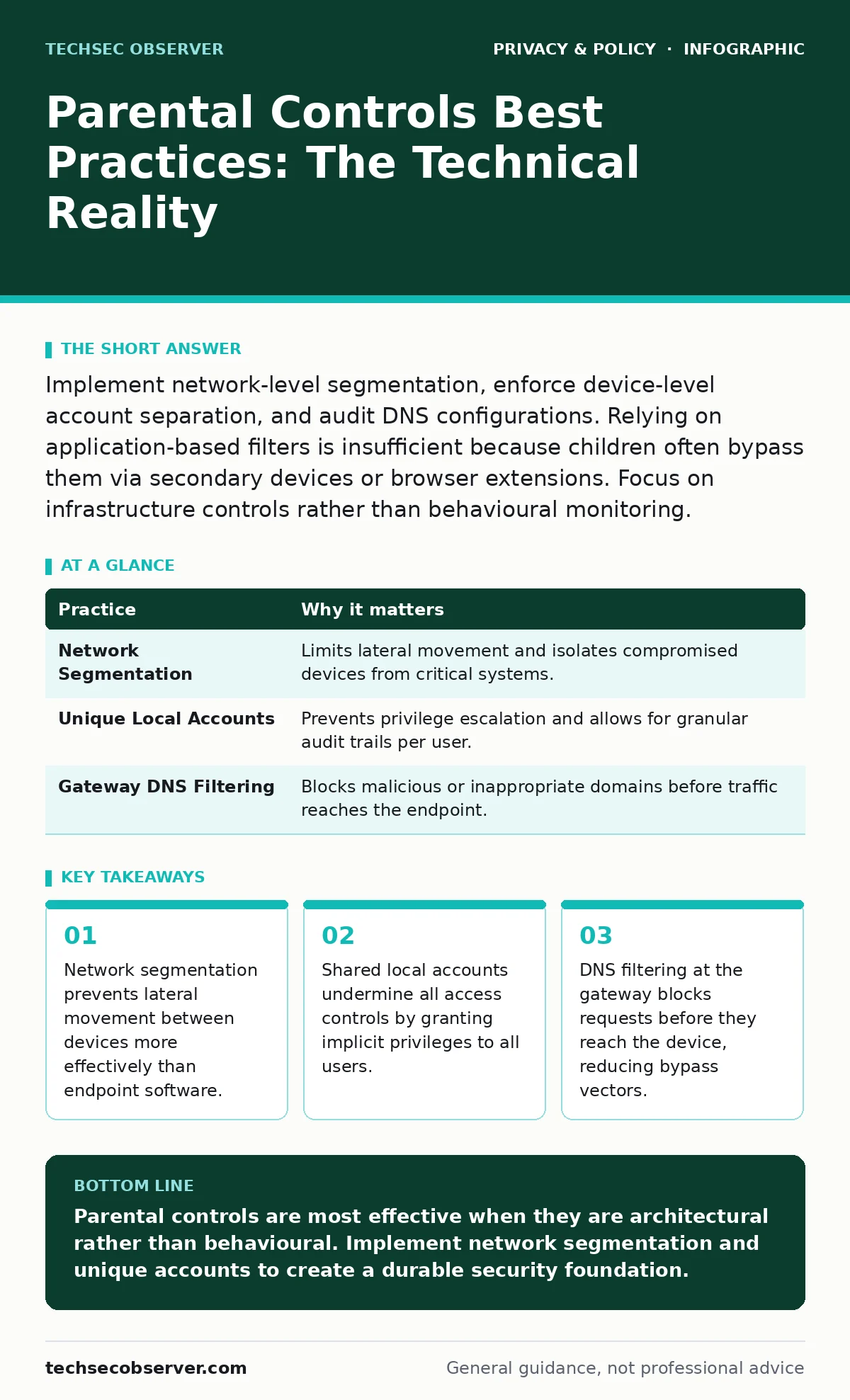
Implement network-level segmentation, enforce device-level account separation, and audit DNS configurations. Relying on application-based filters is insufficient because children often bypass them via secondary devices or browser extensions. Focus on infrastructure controls rather than behavioural monitoring.
Architectural Isolation Over Application Filters
Relying solely on software installed on a single device creates a single point of failure. If a child accesses content via a tablet, a school computer, or a library terminal, the endpoint software provides no protection. The most durable approach treats the home network as the primary security boundary. You must assume that any device connected to your network can be compromised or misused.
Imagine a household where the primary control is a parental control app on a laptop. The user switches to a smart television or a gaming console to access the same service. The app cannot inspect traffic from these devices, rendering the control invisible. By moving the control point to the network edge, you enforce policy regardless of the device type.
1. Implement Network Segmentation
Network segmentation involves dividing your local area network into smaller, isolated sub-networks. This prevents devices in one segment from communicating directly with devices in another. You should place smart home devices, guest devices, and child user devices on separate virtual LANs. This limits the attack surface if one device is compromised.
Tip: Configure your router to create a dedicated VLAN for child devices. Apply firewall rules at the router level that restrict outbound traffic from this VLAN to only approved ports and protocols. This ensures that even if a device is infected with malware, it cannot scan or infect other devices on the main network.
| Practice | Why it matters |
|---|---|
| Network Segmentation | Limits lateral movement and isolates compromised devices from critical systems. |
| Unique Local Accounts | Prevents privilege escalation and allows for granular audit trails per user. |
| Gateway DNS Filtering | Blocks malicious or inappropriate domains before traffic reaches the endpoint. |
Identity and Access Management at Home
Most household networks operate under a single administrative identity or shared local accounts. This practice erases accountability. When multiple users share one login, you cannot determine who performed which action. It also means that if one user changes a setting, it affects everyone. You must treat your home network with the same identity hygiene as a corporate environment.
2. Enforce Unique Local Accounts
Each user must have their own operating system account. This allows you to set specific permissions, disk quotas, and software installation rights per user. It also ensures that application data, browser history, and saved credentials remain isolated. Shared accounts often lead to accidental data leakage or configuration drift.
Tip: Disable the guest account on operating systems and require password authentication for all logins. Use parental control features within the OS to restrict administrative privileges, ensuring that users cannot install new software or modify system settings without your explicit approval.
3. Centralise Credential Management
Password reuse across services is a common vulnerability. If a child’s account on a social platform is breached, attackers may attempt those same credentials on other services. You must enforce the use of a password manager that generates unique, complex passwords for each service. This limits the blast radius of any single credential leak.
Tip: Use a shared password manager vault for family accounts, but ensure that each family member has their own sub-vault for personal accounts. This balances convenience with security, allowing you to monitor shared services while respecting individual privacy for personal communications.
Traffic Inspection and Protocol Control
Content filtering is often misunderstood as blocking specific words or images. In reality, it is about controlling the protocols and destinations that devices can reach. Unencrypted traffic can be inspected and blocked easily, but encrypted traffic requires a different approach. You must understand the trade-off between privacy and security when implementing these controls.
4. Deploy Gateway DNS Filtering
Domain Name System filtering at the router level translates domain names into IP addresses. By using a secure DNS provider that blocks known malicious or inappropriate categories, you prevent devices from resolving those addresses. This method is lightweight and applies to all devices on the network, including those that cannot run security software.
Tip: Configure your router to use a DNS service that offers category-based blocking. Ensure that all devices are set to obtain DNS settings automatically from the router, rather than using static DNS entries that could bypass your filters.
Data Minimisation and Privacy Hygiene
Parental controls often focus on what children can see, but they rarely address what data is collected about them. Many applications collect metadata, location data, and usage patterns. This data can be used to build detailed profiles of a child’s behaviour. You must apply the principles of privacy by design to the devices and accounts your children use.
5. Audit Application Permissions
Every application requests certain permissions to function. These include access to the camera, microphone, location, and contacts. Many applications request more permissions than they need. You should regularly review these permissions and revoke any that are not strictly necessary for the application’s core function.
Tip: On mobile devices, review the permission settings for each app monthly. Disable background location access for apps that do not require real-time location data. This reduces the amount of personal data transmitted to third-party servers.
6. Minimise Metadata Exposure
Metadata is data about data, such as the time a message was sent or the location where a photo was taken. This information can reveal sensitive details about a user’s routine and associations. You should configure devices to strip metadata from files before they are shared or uploaded.
Tip: Use operating system features or third-party tools to remove EXIF data from images before sharing them on social platforms. This reduces the risk of inadvertent location disclosure. For more details, see our guide on metadata exposure.
Behavioural Limits and Time Management
Time management is a component of digital wellbeing, but it is often implemented poorly. Hard limits can lead to frustration and attempts to circumvent controls. You should focus on encouraging healthy habits rather than enforcing rigid restrictions. This approach builds trust and reduces the likelihood of adversarial behaviour.
7. Define Clear Usage Boundaries
Instead of arbitrary time limits, establish clear rules about when and where devices can be used. For example, devices should not be used in bedrooms during sleeping hours. This reduces the risk of sleep disruption and ensures that device use is supervised. It also prevents the use of devices for inappropriate activities in private spaces.
Tip: Use smart plugs to cut power to charging stations in bedrooms at a set time. This physically prevents devices from being used late at night, regardless of software settings.
See also: vlans for home network: isolate traffic without buying enterprise gear
Continuous Review and Adaptation
Parental controls are not a set-and-forget solution. Children’s needs and capabilities change rapidly. What is appropriate for a young child may be insufficient for a teenager. You must regularly review and adjust your controls to match the user’s maturity and technical skills.
8. Conduct Regular Security Audits
Review your network logs and device settings every few months. Look for new applications, changes in DNS settings, or unusual traffic patterns. This helps you identify potential bypass attempts or security vulnerabilities. It also ensures that your controls remain effective as new services and threats emerge.
Tip: Enable logging on your router and firewall. Review these logs periodically to identify any attempts to bypass restrictions. This provides insight into your children’s behaviour and helps you adjust your policies accordingly.
9. Educate on Social Media Risks
Technical controls cannot prevent all risks. Children must understand the implications of their online actions. You should discuss the potential consequences of sharing personal information, interacting with strangers, and posting content online. This education complements technical controls by fostering responsible behaviour.
Tip: Have open conversations about the permanent nature of digital footprints. Explain that once content is shared, it can be difficult to remove. For further reading, see our analysis of social media privacy risks.
Key takeaways
- Network segmentation prevents lateral movement between devices more effectively than endpoint software.
- Shared local accounts undermine all access controls by granting implicit privileges to all users.
- DNS filtering at the gateway blocks requests before they reach the device, reducing bypass vectors.
Parental controls are most effective when they are architectural rather than behavioural. Implement network segmentation and unique accounts to create a durable security foundation.
Frequently asked questions
Can children bypass DNS filtering?
Yes, if they can change the DNS settings on their device to use a public resolver. You must enforce DNS settings at the router level and disable manual DNS configuration on user devices.
Is it legal to monitor my child’s internet traffic?
Laws vary by jurisdiction. Generally, parents have the right to monitor minors in their care, but you should be aware of local regulations regarding privacy and data protection. See our guide on **legitimate interest under the GDPR** for context.
Do parental controls slow down internet speed?
Minimal impact is expected from DNS filtering. However, deep packet inspection or heavy content filtering can introduce latency. Network segmentation has no measurable impact on speed.
How do I handle shared devices?
Shared devices should use separate user accounts with limited privileges. Avoid using shared accounts for web browsing or social media. Consider using browser profiles to isolate data.
How this guide was produced: written by the TechSec Observer editorial team with AI assistance, checked against the public references listed below, and reviewed when the facts change. See our editorial policy or report an error.