Secure macOS for Small Teams: Practical Settings and Delegation
You can reduce the attack surface of your Mac fleet without enterprise software by configuring built-in gatekeepers and file permissions correctly.

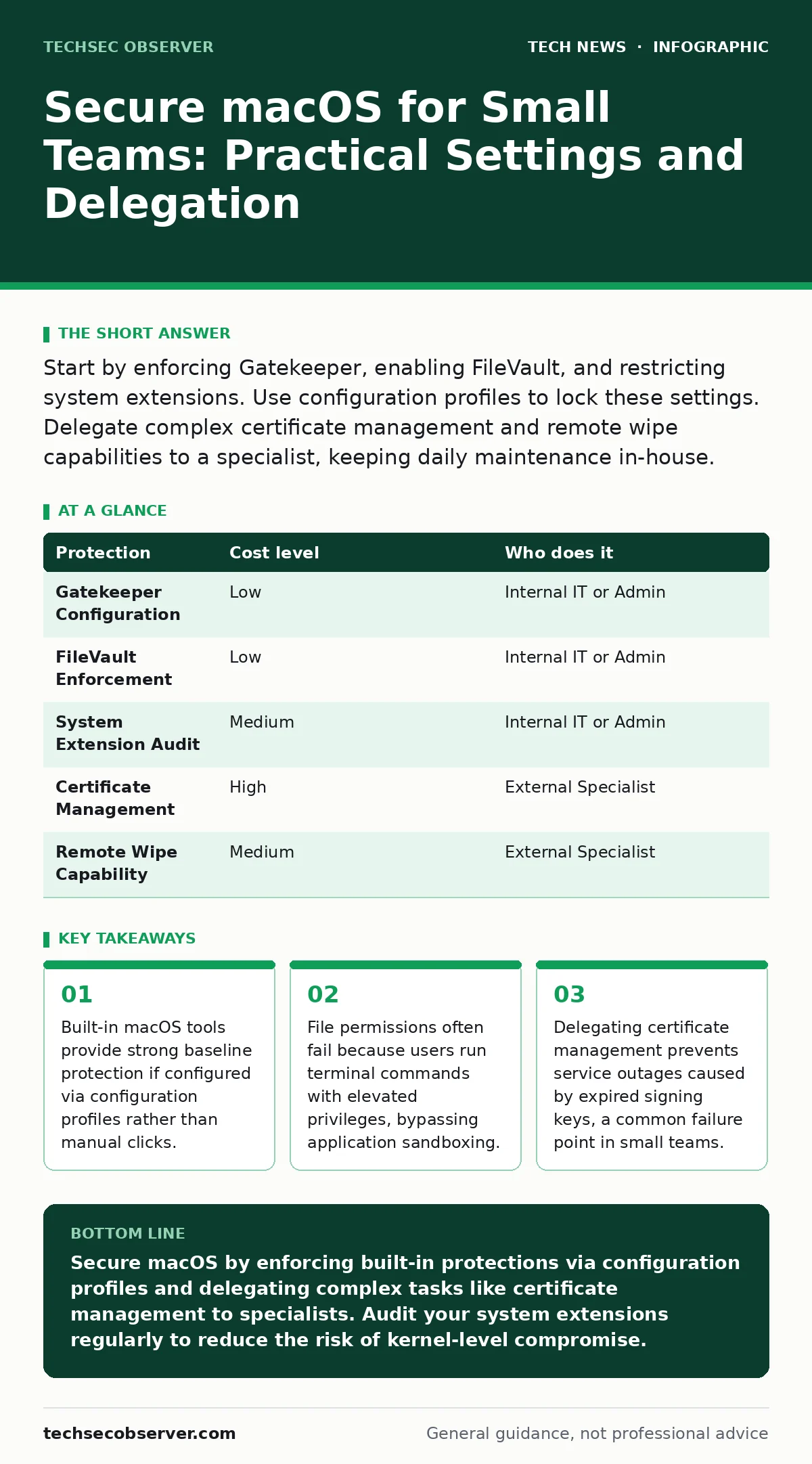
Start by enforcing Gatekeeper, enabling FileVault, and restricting system extensions. Use configuration profiles to lock these settings. Delegate complex certificate management and remote wipe capabilities to a specialist, keeping daily maintenance in-house.
The Hidden Risk of Small Scale
Small teams often assume they are too small to be targeted by sophisticated malware. This assumption is incorrect. Attackers automate their scans, meaning a ten-person company faces the same initial probing as a thousand-person corporation. The difference lies in the response time. Large organisations have security operations centres that detect anomalies within minutes. Small teams often discover a breach only when data is already exfiltrated or systems are held for ransom.
The risk is compounded by the "trusted user" model. In small teams, everyone knows everyone. This familiarity reduces the friction of sharing credentials or accessing shared drives. It also reduces the likelihood of reporting suspicious behaviour, as employees may fear appearing incompetent or causing disruption. You must treat internal trust as a security boundary, not a bypass mechanism.
Configuring Gatekeeper Correctly
Gatekeeper is the macOS mechanism that checks the provenance of applications before allowing them to run. By default, it allows apps from the App Store and identified developers. For a small business, this default is often too permissive. You should configure Gatekeeper to allow only apps from the App Store or those signed with a specific organisational certificate.
This restriction prevents users from installing rogue applications downloaded from obscure websites. However, it introduces a friction point. Developers may need to test unsigned builds. You must establish a clear process for testing unsigned code in isolated environments. Do not disable Gatekeeper system-wide to accommodate testing. Use virtualisation security techniques to run untrusted code in a sandboxed environment that cannot access the host system.
Enforcing File Integrity with FileVault
FileVault provides full-disk encryption for macOS. It encrypts the entire volume, protecting data if the physical device is stolen or lost. Without FileVault, an attacker with physical access can boot the Mac from an external drive and access the internal storage directly. This is a low-effort, high-reward attack vector.
The trade-off is convenience. Users must enter their password or use biometric authentication to unlock the drive at startup. For many, this is a minor inconvenience. For others, it feels like a barrier. You must communicate that this barrier protects sensitive business data. Ensure that recovery keys are stored securely, preferably in a password manager or a secure offline location. Losing the recovery key means losing the data permanently.
Managing System Extensions and Kernel Panics
macOS uses system extensions to allow third-party software to interact with core system functions. This includes network filters, disk encryption tools, and device drivers. Historically, these were known as kernel extensions. Modern macOS restricts these heavily because a bug or malicious intent in a kernel extension can crash the entire system or bypass security controls.
You must audit which system extensions are active on your Macs. Many applications install extensions unnecessarily. For example, a simple productivity tool may install a network filter to monitor traffic, which is unnecessary and risky. Disable any extension that does not serve a critical business function. Check for updates regularly, as outdated extensions are a common source of system instability and security vulnerabilities.
The Cost of Certificate Management
Certificate management involves maintaining the digital signatures that prove an application’s identity. If your team develops internal tools, you need to sign them with a certificate to bypass Gatekeeper restrictions. Managing these certificates is complex. Certificates expire, keys can be compromised, and revocation lists must be updated.
For a small team, managing certificates in-house is a hidden cost. It requires specialised knowledge and time. If a certificate expires, your internal tools stop working, causing productivity losses. If a key is compromised, an attacker can sign malicious code that appears to be from your organisation. Delegate this task to a specialist or use a managed service. This ensures that certificates are renewed on time and keys are stored securely.
| Protection | Cost level | Who does it |
|---|---|---|
| Gatekeeper Configuration | Low | Internal IT or Admin |
| FileVault Enforcement | Low | Internal IT or Admin |
| System Extension Audit | Medium | Internal IT or Admin |
| Certificate Management | High | External Specialist |
| Remote Wipe Capability | Medium | External Specialist |
See also: Security Awareness Training for Small Teams That Actually Works · Content Security Policy Implementation for Small Business Security
Delegating Remote Access and Wipe
Small teams often rely on remote access tools to support employees working from home. These tools can be a vector for lateral movement if an attacker compromises one endpoint. They can also be used to exfiltrate data. You must ensure that remote access tools are configured to require multi-factor authentication and that sessions are logged.
In the event of a lost or stolen device, you need the ability to wipe the data remotely. This requires a mobile device management solution or a dedicated security platform. Implementing this in-house can be complex and error-prone. Delegating this to a specialist ensures that the wipe command is sent securely and that the device is properly deregistered from your network. This also includes handling the legal and compliance aspects of data destruction.
Questions for Your IT Provider
When evaluating an IT provider to manage your macOS security, ask specific questions. Do not accept vague assurances. You need to know exactly how they handle incidents and what tools they use.
- How do you enforce configuration profiles on macOS devices?
- What is your process for managing and renewing code signing certificates?
- How do you detect and respond to compromised system extensions?
- Can you provide a demonstration of remote wipe capabilities?
- How do you handle the revocation of compromised credentials?
Building a Sustainable Security Culture
Security is not a one-time configuration. It is an ongoing process. You must educate your team on the risks of social engineering and the importance of reporting suspicious activity. However, education alone is not enough. You must make the secure choice the easy choice.
If security measures are too cumbersome, users will find ways to bypass them. This is known as shadow IT. By simplifying the user experience and providing clear support, you reduce the likelihood of bypass. Regularly review your security settings and update them as new threats emerge. Engage with your team to understand their pain points and address them proactively. This builds trust and encourages cooperation.
Remember that no system is perfectly secure. The goal is to make attacks difficult, detectable, and containable. By focusing on the most critical controls and delegating complex tasks, you can achieve a high level of security without overwhelming your small team. This approach allows you to focus on your core business while maintaining a strong security posture.
Key takeaways
- Built-in macOS tools provide strong baseline protection if configured via configuration profiles rather than manual clicks.
- File permissions often fail because users run terminal commands with elevated privileges, bypassing application sandboxing.
- Delegating certificate management prevents service outages caused by expired signing keys, a common failure point in small teams.
Secure macOS by enforcing built-in protections via configuration profiles and delegating complex tasks like certificate management to specialists. Audit your system extensions regularly to reduce the risk of kernel-level compromise.
Frequently asked questions
Do I need an MDM solution for a small team?
Yes, a mobile device management solution is necessary to enforce security settings consistently across all devices and to manage remote wipe capabilities.
Can I use FileVault without an MDM?
You can enable FileVault manually, but an MDM allows you to encrypt recovery keys and enforce activation policies across the fleet.
How often should I audit system extensions?
You should audit system extensions after every major macOS update and whenever new software is installed, as updates can change extension requirements.
What if a user loses their Mac?
You must immediately revoke their access credentials and trigger a remote wipe command through your management solution to protect sensitive data.
How this guide was produced: written by the TechSec Observer editorial team with AI assistance, checked against the public references listed below, and reviewed when the facts change. See our editorial policy or report an error.