USB Device Control: Seven Practices to Secure Physical Access
Blocking read access to removable media leaves systems vulnerable to power-based attacks that bypass traditional file system controls entirely.

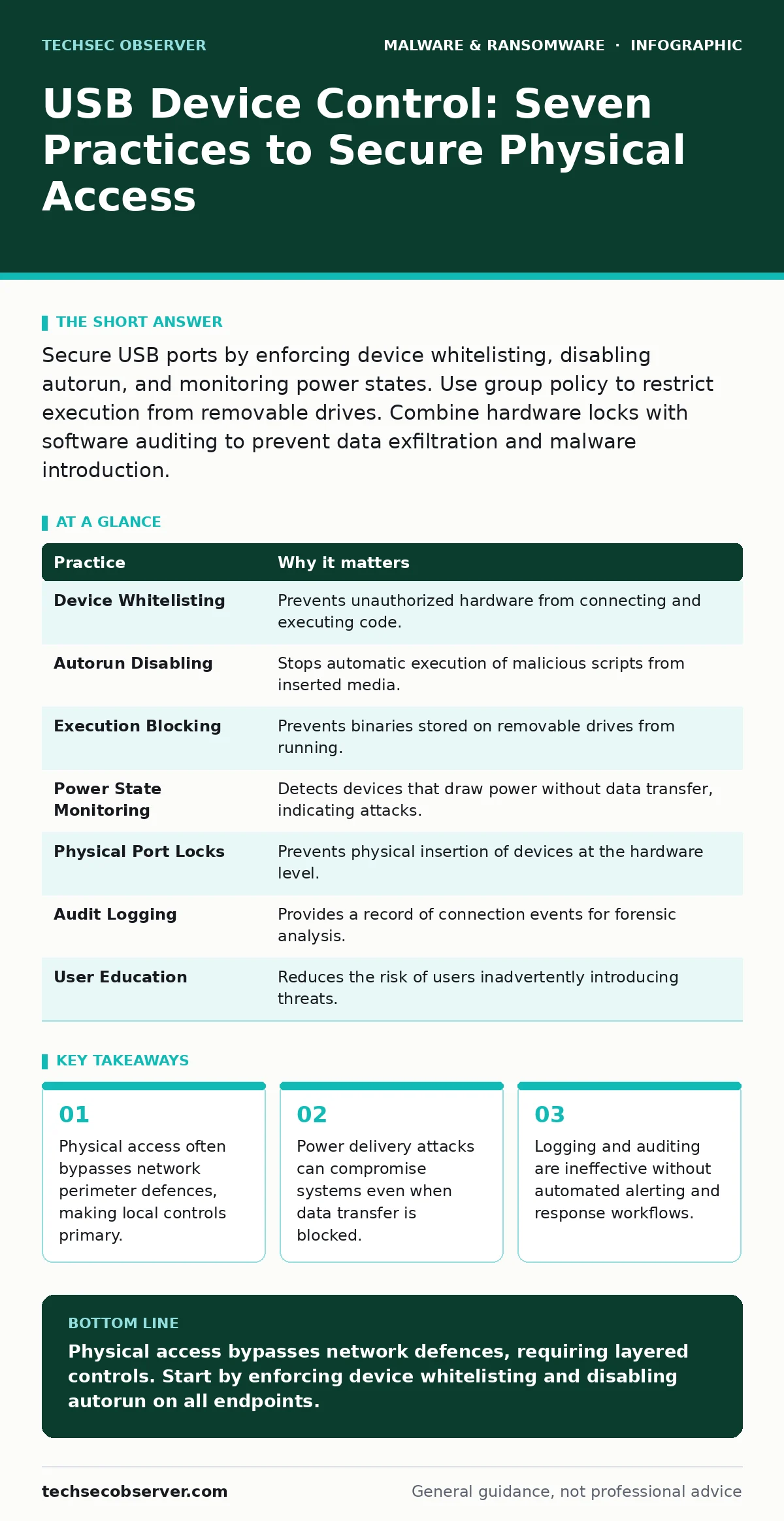
Secure USB ports by enforcing device whitelisting, disabling autorun, and monitoring power states. Use group policy to restrict execution from removable drives. Combine hardware locks with software auditing to prevent data exfiltration and malware introduction.
The Physical Perimeter is Porous
Network firewalls and intrusion detection systems protect against remote threats, but they do nothing for a device plugged directly into a machine. A USB connector provides a direct electrical pathway to the motherboard, granting the attached device the same privileges as the operating system kernel. This physical link allows for data exfiltration, malware injection, and even hardware-level tampering. You cannot rely on perimeter security to stop an attacker standing next to your workstation.
The Limits of Software Only
Software controls are necessary but insufficient. An attacker with physical access can often bypass software restrictions by modifying firmware, using bootable media, or exploiting firmware vulnerabilities in the USB controller itself. Relying solely on operating system policies leaves gaps that sophisticated adversaries can exploit. You must combine software restrictions with physical security measures to create a defensible position.
Seven Practices for USB Control
1. Enforce Device Whitelisting
Block all USB devices by default and allow only specific, approved hardware. This approach assumes that any unplanned device is hostile. Whitelisting reduces the attack surface by ensuring that only known, trusted peripherals can communicate with the system. It prevents unknown storage devices or malicious gadgets from establishing a connection.
Tip: Use group policy or mobile device management tools to define allowed device classes and vendor IDs. Regularly review and update the whitelist as new hardware is deployed.
| Practice | Why it matters |
|---|---|
| Device Whitelisting | Prevents unauthorized hardware from connecting and executing code. |
| Autorun Disabling | Stops automatic execution of malicious scripts from inserted media. |
| Execution Blocking | Prevents binaries stored on removable drives from running. |
| Power State Monitoring | Detects devices that draw power without data transfer, indicating attacks. |
| Physical Port Locks | Prevents physical insertion of devices at the hardware level. |
| Audit Logging | Provides a record of connection events for forensic analysis. |
| User Education | Reduces the risk of users inadvertently introducing threats. |
2. Disable Autorun and AutoPlay
Operating systems often execute code automatically when a new device is detected. This feature, designed for convenience, is a primary vector for malware propagation. Disabling autorun ensures that no code executes until a user explicitly chooses to open a file. This adds a layer of human verification to the process.
Tip: Configure system policies to disable autorun for all removable media types. Ensure that this setting is enforced across all endpoints to prevent inconsistent behaviour.
3. Block Execution from Removable Media
Even if a user manually opens a file from a USB drive, the system should prevent the execution of binaries. This stops malware from running even if the user makes a mistake. It forces the user to copy files to a local directory where they can be scanned before execution. This separates the storage medium from the execution environment.
Tip: Use application control policies to block executable files from running if their origin is a removable drive. Allow only specific file types, such as documents, to be opened.
4. Monitor Power States
Some attacks do not transfer data but instead exploit the power delivery mechanism. A malicious device can draw excessive power to damage hardware or use power fluctuations to extract information from the system. Monitoring power states helps detect these anomalous conditions. It reveals devices that are present but not actively transferring data.
Tip: Implement monitoring tools that track power consumption per port. Alert administrators when a device draws power outside of expected ranges for its class.
5. Use Physical Port Locks
Software controls can be bypassed if an attacker has physical access to the machine. Physical port locks prevent the insertion of USB devices entirely. This is the most effective defence against casual theft or opportunistic attacks. It adds a tangible barrier that requires tools to bypass.
Tip: Install physical locks on unused USB ports. Use these in conjunction with software controls to provide defence in depth.
6. Implement Comprehensive Audit Logging
You cannot protect what you cannot see. Logging all USB connection events provides a trail for forensic analysis. It helps identify when and where a device was connected. Without logging, you have no way to detect unauthorized access after the fact.
Tip: Configure systems to log device connection and disconnection events. Send these logs to a centralised security information and event management system for analysis.
7. Educate Users on Physical Risks
Users often underestimate the risk of physical devices. They may plug in found USB drives out of curiosity or convenience. Education helps users understand the risks and report suspicious devices. It creates a culture of security awareness that complements technical controls.
Tip: Include USB security in regular training sessions. Explain the risks of autorun and physical tampering. Encourage users to report any unfamiliar devices found in the workplace.
Integrating with Detection Systems
USB controls do not exist in isolation. They must integrate with broader security monitoring. Extended detection and response (XDR) platforms can correlate USB events with other security signals. This provides context for potential threats. For example, a USB connection followed by unusual network traffic may indicate data exfiltration.
The Role of Behavioural Analysis
Static controls are not enough. Behavior-based detection can identify malicious activity even if the device is whitelisted. This approach looks for unusual patterns of behaviour rather than known signatures. It helps catch novel attacks that bypass traditional controls.
See also: Cryptojacking: How to Detect and Stop Silent Resource Theft · PowerShell Logging Misconceptions: What Actually Gets Recorded
Considerations for Mobile Environments
While this guide focuses on desktop systems, similar principles apply to mobile devices. Mobile malware often spreads through physical connections. Malicious mobile apps can exploit USB debugging features. Understanding these risks helps in securing all endpoints.
Legal and Compliance Aspects
Organisations must balance security with user privacy. Legitimate interest under the GDPR may allow monitoring of USB usage for security purposes. However, this must be documented and justified. Ensure that your policies comply with relevant regulations.
Key takeaways
- Physical access often bypasses network perimeter defences, making local controls primary.
- Power delivery attacks can compromise systems even when data transfer is blocked.
- Logging and auditing are ineffective without automated alerting and response workflows.
Physical access bypasses network defences, requiring layered controls. Start by enforcing device whitelisting and disabling autorun on all endpoints.
Frequently asked questions
Can an attacker bypass USB controls?
Yes, sophisticated attackers can use firmware exploits or physical tampering to bypass software controls. Physical locks and behavioural monitoring help mitigate this risk.
Should I block all USB ports?
Blocking all ports is impractical for most organisations. Instead, use whitelisting to allow only necessary devices. This balances security with usability.
How do I detect USB-based data theft?
Use audit logging and XDR platforms to monitor for unusual data transfers. Look for large volumes of data being copied to removable media.
Is USB security different for laptops?
Laptops are more portable and thus more vulnerable to physical theft. Ensure that USB controls are enforced even when devices are off-site. Use full disk encryption as an additional layer.
How this guide was produced: written by the TechSec Observer editorial team with AI assistance, checked against the public references listed below, and reviewed when the facts change. See our editorial policy or report an error.